
Broker Guide: How to Add an Additional Applicant to an InstantAPPLY Application
A. Adding an additional applicant for a New Application:
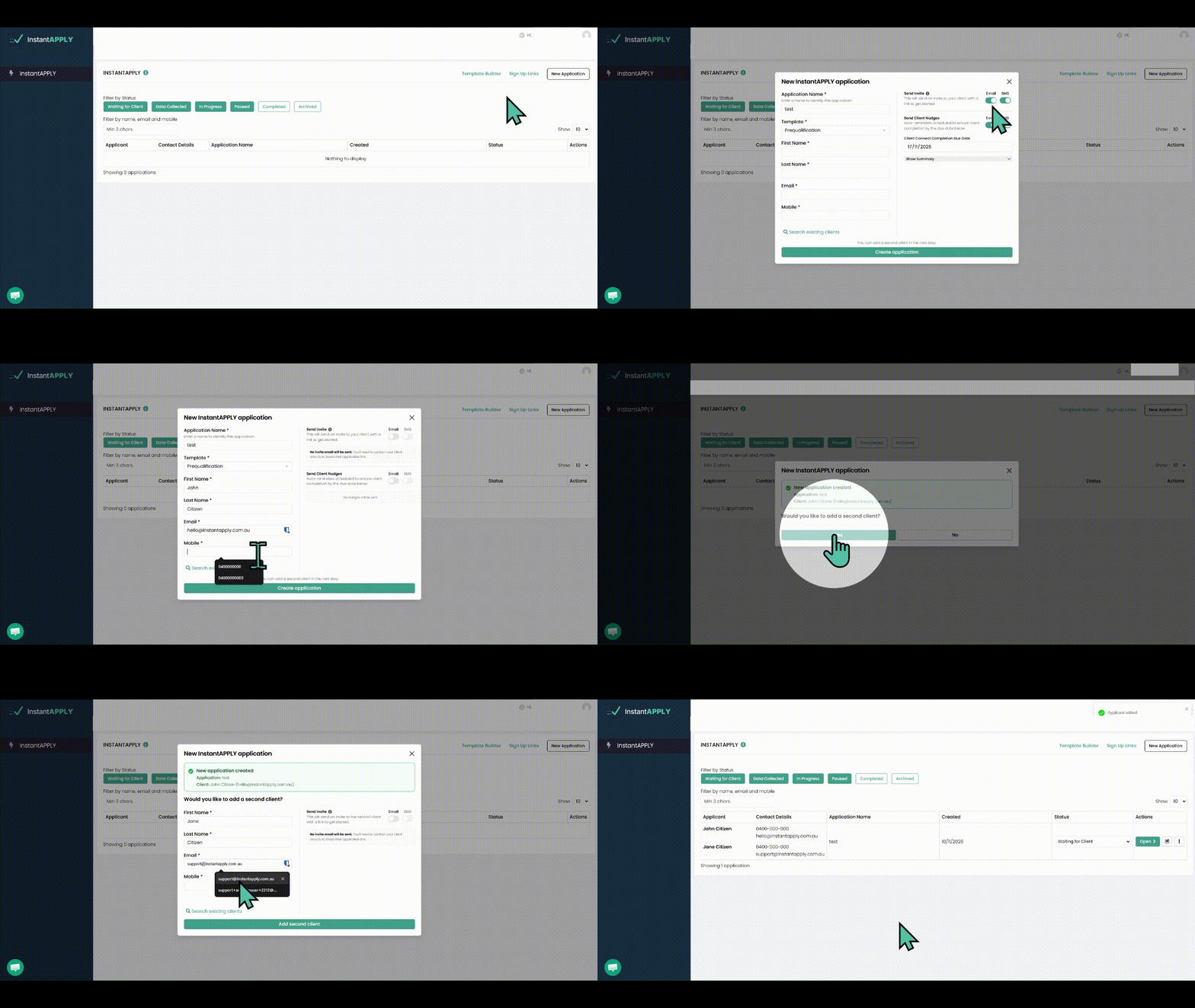
1. Start a new application by clicking New Application.
2. Fill in the details with the first applicant, and choose whether you send them an invite and/or nudges. Once done, click Create Application.
3. You'll be prompted to add a second client. Click Yes.
4. Enter the details for the second applicant, choose whether to send the invite/nudges or not, and click Add second client.
B. Adding an additional applicant for an Existing Application:
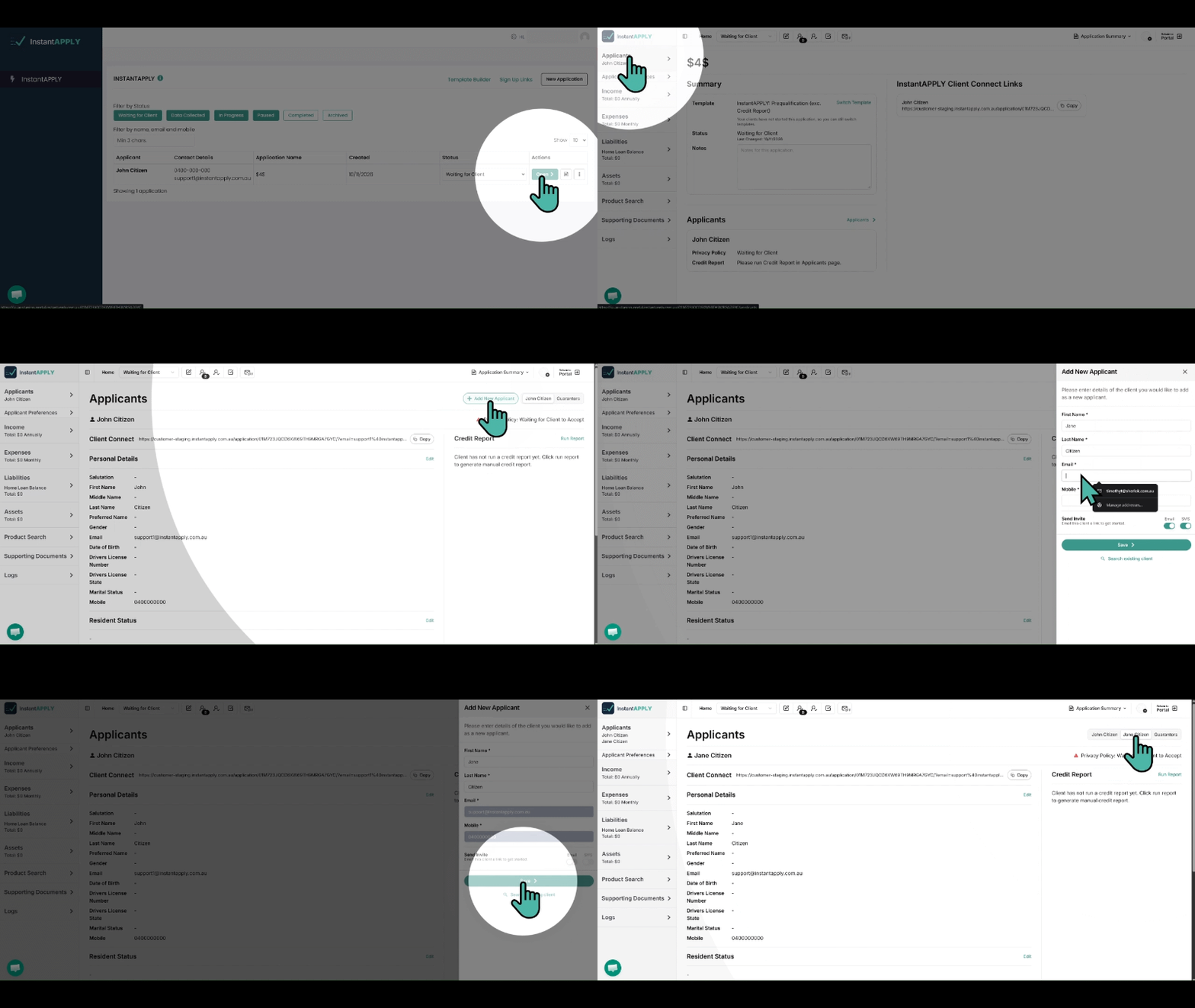
1. Open an existing application, navigate to the Applicants module.
2. On the upper right-hand corner of the Applicants module, click + Add New Applicant.
3. Enter details of the client you would like to add as a new applicant, or Search for an Existing Client.
4. Click Save.
📝Note: Depending on what was toggled, the system will send an email/sms to the new applicant.
⚠️Warning: If the Send invite was toggled to NO for both email and SMS, you'll have to manually send the invite, yourself.
ℹ️ To have the client add the second applicant instead, have them follow this Knowledge Base Article.