
Custom Invite Template Builder
The new Template Builder gives you complete control over your client invitations, allowing you to customise content, personalise the client experience, and create reusable templates tailored to your workflow and client needs.
What You Can Customise
Element | Customisable? | Description |
Invite Message | Yes |
|
Section Titles | Yes |
*All sections require a section title. |
Sections | Yes |
|
Reusable Fact Find Items | Yes |
*Can be added multiple times. |
Unique Fact Find Items | No, but individual items can be added or removed in each section. |
*Only one of each Unique Fact Find item type can be added per application. |
Before You Start
- Make sure your profile is already set up.
- Add your profile picture and business logo.
- Have your preferred client messaging ready.
Accessing the Template Builder & Creating Your Template
- Login to your InstantAPPLY account.
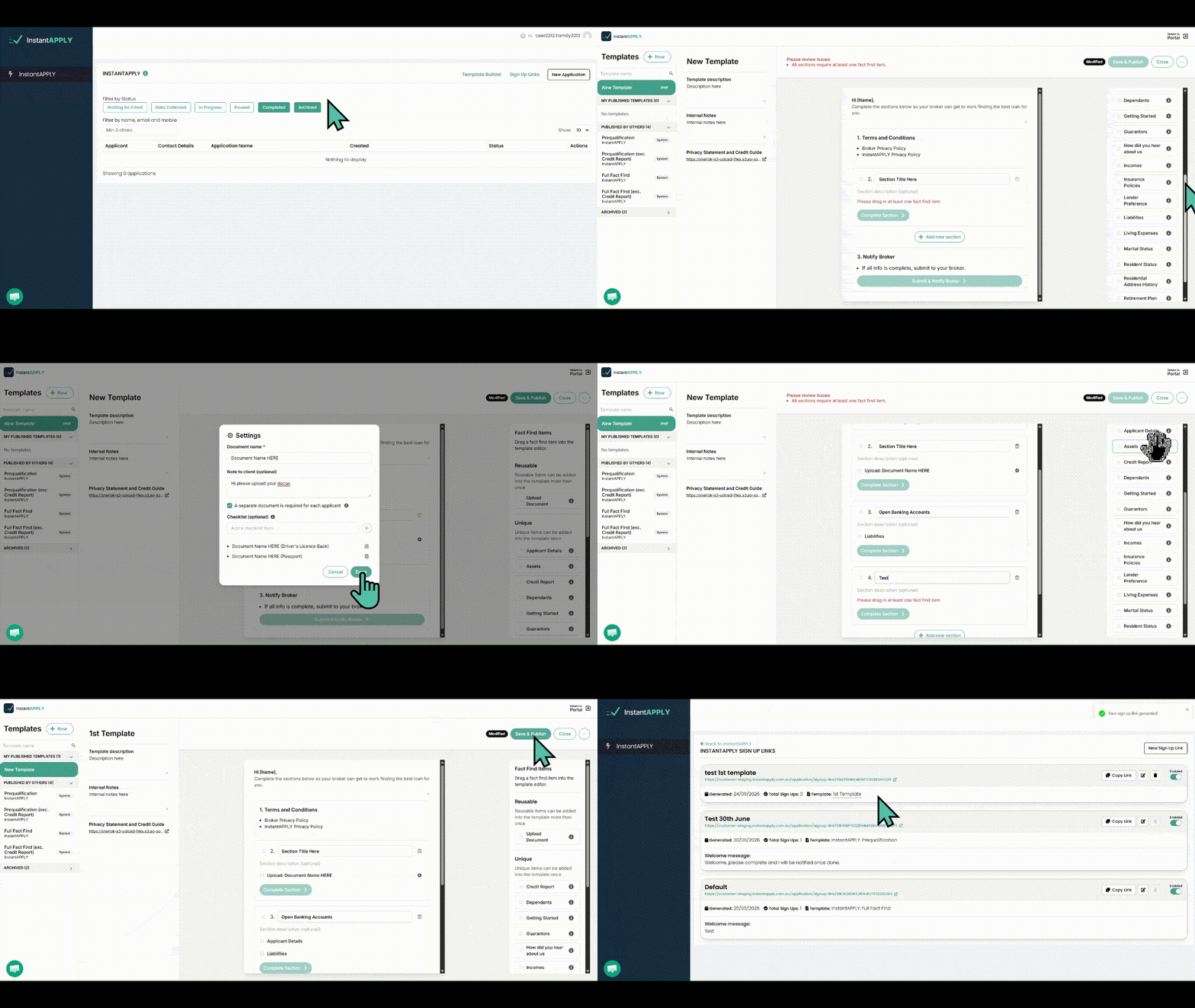
- From the Dashboard, click Template Builder.
- Select + New, to create a New Template.
📹See below for a visual guide:
FAQs
- Can I personalise the message for each client?
Yes, you can modify the invite message in the text field below the client greeting. - Can I add my own application link?
No, each application link is system-generated. - Can I share published templates?
Yes, you can share them with brokers in your brokerage. - Will changing the template affect invitations I have already sent?
Changing and publishing these changes to an existing template will only affect applications that clients have not yet started*. - Can I reset the template to the default?
You can't modify default templates directly, so you don't need to reset them. To make changes, simply duplicate a default template and customise your copy, or quickly create a new template from scratch.
- Can I edit a published template?
Yes, when editing a published template, a draft version is automatically created while the original published version remains available. Once you publish the new version, it will only apply to applications that clients have not yet started*. - Can I archive templates? What happens when I archive a published template?
Yes, you can archive a published template at any time. Any sign-up links or applications already assigned to an archived template, including shared templates, will continue to function as normal.
For best results, we recommend updating your sign-up links to use the latest template version whenever possible.
If you archive a shared template, please let the brokers who use the template know.
✱ An application is considered started once a client logs in and accepts the Terms and Conditions. This approach ensures clients have a consistent experience throughout their application.