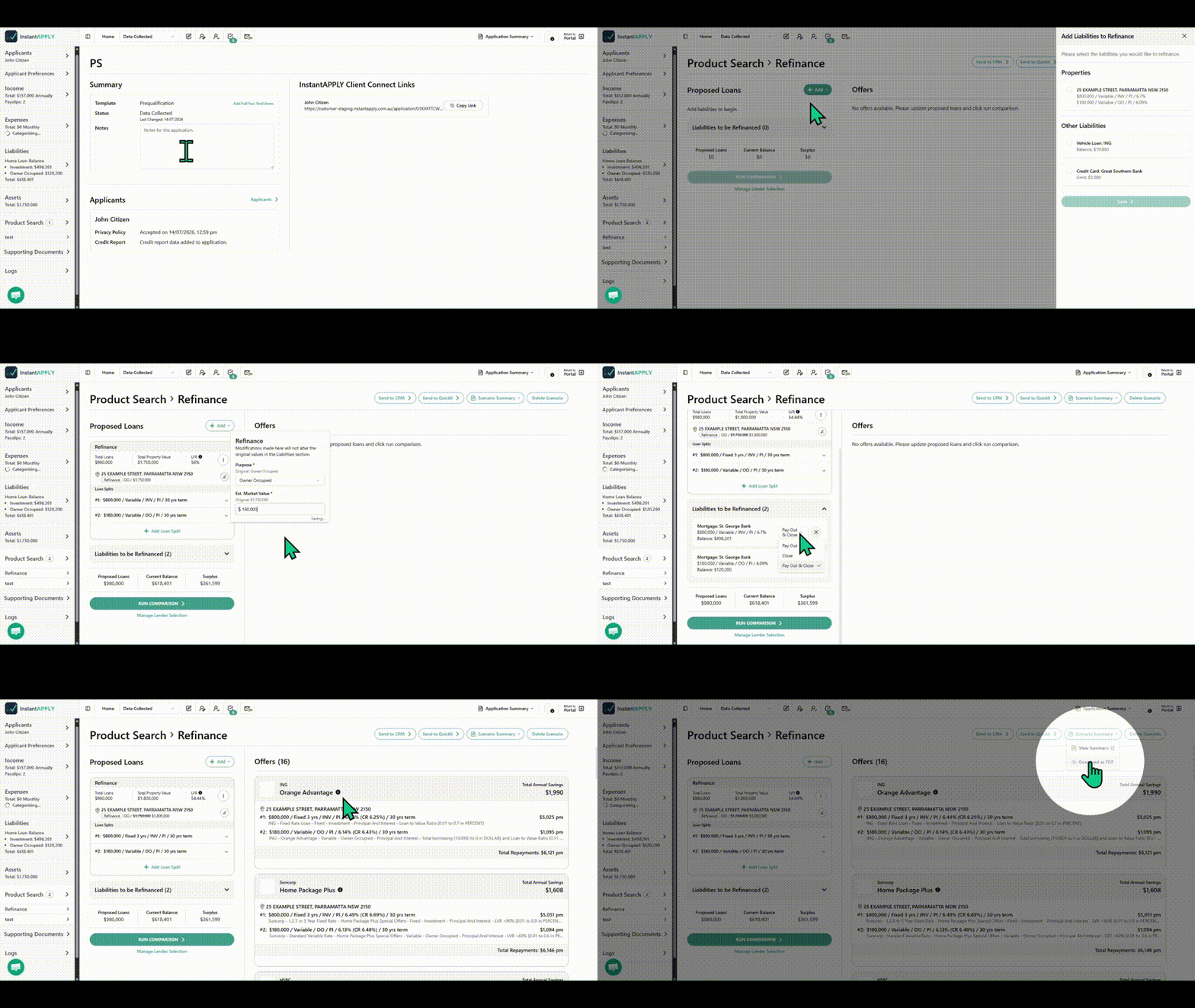
Product Search
Learn how to use InstantAPPLY's Product Search to compare lenders, explore interest rates, and identify the best lending opportunities for your clients.
The Product Search feature allows you to build complex scenarios without modifying the original application data. You can customise loan structures, compare products across the market, and identify lenders that provide the greatest savings for your client.
📌Important: To begin creating a scenario the first three modules; Income, Expenses and Liabilities, must be completed.
Create a New Scenario
- Navigate to Product Search.
- Select Add New Scenario.
- Enter a Scenario Name and Description, (e.g. Refinance).
- Save the scenario.
- Click View
ℹ️Note: The scenario must be built before running a comparison, that's why a new scenario opens as a blank workspace. - In Proposed Loans, Select Add
- Depending on your Scenario, Choose to Add Liabilities to Refinance or
Add New Purchase - Add the details for the Proposed New Purchase or Add the Liabilities to Refinance
- Edit the proposed Scenario
📍Important: Changes made in the scenario do not update the underlying application data. They are only used for product comparison.
You can modify details such as: - Property valuation
- Loan amount, type, term
- Add Loan splits
- Loan Purpose
- Whether certain requirements are essential (LOC, Packaged, Redraw, Offset, etc.)
- Lenders included in Scenario
- Once loan structure is complete, Select Run Comparison.
ℹ️Note: You'll need to Re-Run a Comparison if you've added any additional Liabilities. - Send the Scenario to Quickli OR Click Scenario Summary, then Download PDF, and Upload to your CRM.